EnableAll logo

How to use EnableAll

as a website visitor

We hope you enjoy using EnableAll

We’ve created EnableAll to help every website visitor customize how they browse, while also helping brands with important backend accessibility enhancements.

This page explains how to use the EnableAll Assist-Bar, including what each feature does and how it may support different needs. 
EnableAll's code-fix accessibility widget for ecommerce, shown on a product page

How to access EnableAll

If a website is using EnableAll, you’ll see our accessibility icon on the left or right side 
of the page. 

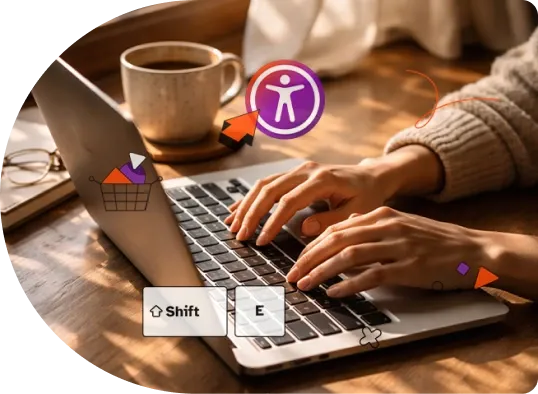
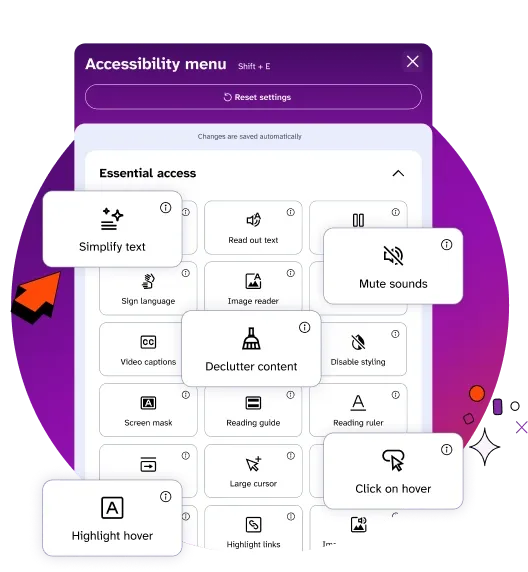
Click the icon (or press Shift + E) to open the accessibility menu and turn on the settings you want to use. 

Person using the EnableAll Assist-Bar on a laptop

How each feature is designed 
to help you browse

Individual needs: We suggest features that may be helpful based on common needs, but everyone’s preferences are different. You’re free to use any tools that work best for you.

Assistive technologies: EnableAll is designed to support (not replace) assistive technologies. You may prefer to use your own device or browser-based tools, and that’s completely fine. We welcome feedback if you notice any conflicts between EnableAll and your personal assistive technology. 

Essential Access Tools 

Simplify text icon
Simplify text 

Clearer text for clearer choices. 

Once enabled, click on any block of text to instantly see a clearer, simpler version written at about a Grade 9 reading level. 

Helpful for: Cognitive differences, Learning disabilities, ADHD, Dyslexia, ESL / language support

Category: Reading, Language

Read out loud icon
Read out text

Hear every word, anywhere on the page.

Once enabled, click on any block of text to have it read aloud in a clear, human-sounding voice. Helpful for reducing reading fatigue, understanding longer pages, or listening to content while multitasking. 

Helpful for: Low vision, Cognitive differences, Learning disabilities, ADHD, Dyslexia

Category: Reading, General productivity

Stop animation icon
Stop animations

Everything calm when you need it.

Stops all moving content on a webpage, including autoplay videos and animated GIFs. This is useful if motion feels distracting or uncomfortable and you prefer a calmer browsing experience.

Helpful for: Epilepsy / seizure risk, ADHD, Autism, Motion sensitivity

Category: Core access, Focus

Image description icon
Image descriptions

Every image, beautifully described. 

Adds descriptive alt text to images so screen readers can clearly explain what’s on the page. Descriptions are designed for ecommerce and shopping contexts, so they explain products and visuals clearly. 

Helpful for: Blind / screen reader users, Low vision

Category: Core access, Media

Mute sounds icon
Mute sounds

Shhhh, when you want it.

Mutes all website sounds so you can browse without audio distractions. Helpful if you use a screen reader, are sensitive to sound, need quiet to focus, or are browsing in a shared or work environment. 

Helpful for: Blind / screen reader users, Autism, Sensory sensitivities, ADHD

Category: Core access, Focus, General productivity

Video captions icon
Video captions

Every video makes sense to everyone.

Enables written captions for video content so you can understand videos without sound. 

Helpful for: Deaf, Hard of hearing, Sensory sensitivities

Category: Media, General productivity

Declutter page icon
Declutter content

Just the essentials, when you need them.

If you find extra on-page content distracting or overwhelming, this feature hides non-essential elements such as pop-ups, banners, ads, and cross-sell sections so you can focus on what matters. 

Helpful for: ADHD, Autism, Cognitive differences, Learning disabilities

Category: Focus, Layout

Disable styling icon
Disable styling

A simple layout for simpler browsing. 

Use this function to switch any page into a simple, single-column layout that’s easy to read. It removes sidebars, clutter, and distracting design elements so you can focus on the main content.

Helpful for: Dyslexia, Cognitive differences

Category: Focus, Layout

Screen mask icon
Screen mask

A calmer screen, instantly. 

This button allows you to tint your screen in a single color to reduce brightness and visual strain. Choose from our dyslexia-friendly color palette. This feature is especially helpful if you prefer to read using a colored visual layer, if you get headaches from bright screens, or if you want to reduce blue light while reading. 

Helpful for: Autism, Dyslexia, Sensory sensitivities, Contrast sensitivity

Category: Vision, General productivity, Focus

Reading guide icon
Reading guide

Read line by line, distraction-free. 

Highlights only the section you’re reading while dimming the rest of the page, making it easier to stay focused. You can even change the highlight color, choosing from our dyslexia-friendly color palette. 

Helpful for: ADHD, Dyslexia, Cognitive differences

Category: Reading, Focus, Vision, General productivity

Reading ruler icon
Reading ruler

Stay on track while reading. 

Use a movable ruler that follows your cursor to help you stay focused and keep your place on the page. You can customize the ruler’s size and color to suit your reading needs. 

Helpful for: ADHD, Dyslexia

Category: Reading, Focus, Vision, General productivity

Sign language icon
Sign language

Helpful for: Deaf

Category: Core access

Large cursor icon
Large cursor

Never lose your cursor again.

Make your cursor larger and change its color so it’s easier to see and track on screen. 

Helpful for: Low vision, Motor impairments

Category: Navigation, Vision, General productivity

Click on hover icon
Click on hover

No click needed, just hover. 

Makes it easier to interact with pages if you find clicking the mouse difficult. Once enabled, simply rest your cursor on a button, image, or link for a moment and it will activate the click automatically.  

Helpful for: Motor impairments

Category: Navigation, General productivity

Highlight on hover icon
Highlight hover

Always know where your cursor is. 

Adds a high-contrast outline to whatever your cursor is hovering over so you can always see what you’re interacting with. 

Helpful for: Low vision, Cognitive differences

Category: Navigation, Vision

Highlight links icon
Highlight links

Every link stands out.

Clearly highlights all clickable links so that navigating a website becomes easier and more predictable. 

Helpful for: Cognitive differences, Low vision, Autism, Contrast sensitivity

Category: Navigation, Vision, Reading

Image reader icon
Image reader

Hear what you see.  

When text is embedded in an image, it can be difficult to read, especially if it’s small, low contrast, or placed on a busy background. This feature lets you select any image containing text to view the text clearly in an easy-to-read high-contrast format. 

To use: hold Shift, drag over the image text, and release. 

Helpful for: Low vision, Contrast sensitivity, Cognitive differences

Category: Vision, Media, Reading

Easier reading options

Change font icon
Fonts that work for everyone

With EnableAll, you can easily adjust how text looks on the page so reading is clearer and more comfortable. Our options allow 
you to:  

  • Change the font style with Dyslexia-friendly and hyper-legible font options 
  • Increase text size by up to 200% 
  • Increase spacing between letters 
  • Increase horizontal or vertical spacing between blocks of content  
Helpful for: Dyslexia, Low vision, Contrast sensitivity
Category: Reading, Vision, General productivity
Example showing increased spacing between text on a webpage

Change colors

Adjust colour icon
What’s your favorite color?

You can also adjust colors on the page to make content clearer and more comfortable to read. 

  • Dark mode, 
  • Grayscale
  • The ability to fully customize the website background, text, and button colors to dyslexia-friendly high-contrast options.
Helpful for: Dyslexia, Low vision, Contrast sensitivity
Category: Vision
Example showing custom colour adjustments applied to a webpage

Adjust visuals

Adjust image icon
Picture. Perfect

Control how visuals on the page (including images and videos) appear for you, with options to change to higher contrast colors, softer colors, black and white, or even to hide visuals completely.  

Helpful for: Autism, Sensory sensitivities, Epilepsy / seizure risk, Cognitive differences
Category: Vision, Focus, Media
Hero illustration of EnableAll's visual accessibility features
Reset settings icon
Reset settings

Near the top of the accessibility menu you’ll see ‘Reset settings’. This turns off any functions you’ve switched on and returns the menu to its default setting.  

Category: Preferences

Accessibility icon
Show the banner

Displays a handy banner that shows which features are enabled, making it easy to review or turn them off. You can choose whether this banner shows for you: always, when features are enabled, or not at all. 

Category: Preferences

Hide images icon
Hide toolbar

If you want to hide the EnableAll Assist-Bar button for any reason, you can do that with the “Toolbar visibility” toggle at the bottom of the accessibility menu. If you choose to turn it off, you will be given the option to customize how long it disappears for.   

Category: Preferences

Accessibility statement icon
Accessibility statement

View EnableAll’s official accessibility statement directly from the widget (or click here)

Star icon
Give feedback

Your feedback helps us to grow. Share your feedback through  the “Give feedback” button at the bottom of our widget or contact us.

Category: Preferences

Reduce legal risk. Boost SEO. Increase conversions.

In just a few clicks.

EnableAll accessibility widget icon
Facegym logo
Unhidden logo
BuDaGirl logo
Sabatino logo
Trend Tonic logo
Antler logo