The ecommerce accessibility app
The EnableAll Assist-Bar lets your customers adjust text, colors, navigation, and more, supporting WCAG AA and AAA requirements while helping more people shop comfortably and reach checkout.
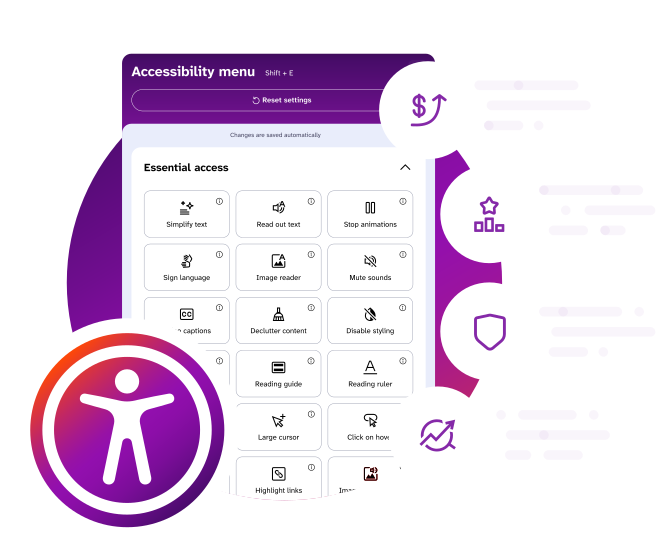

The EnableAll Assist-Bar lets your customers adjust text, colors, navigation, and more, supporting WCAG AA and AAA requirements while helping more people shop comfortably and reach checkout.
Install in minutes • Lightweight • Retail-first AI
• Rich WCAG AA & AAA features • Works with Code-Fix















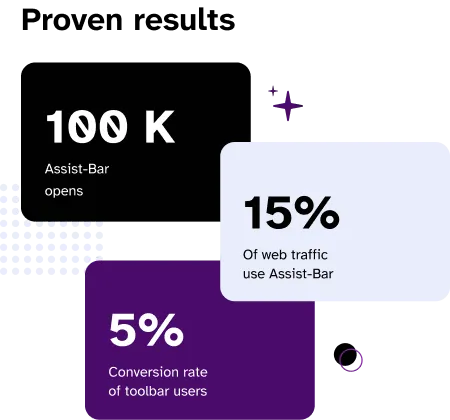
We provide guidance on which features may be helpful based on common needs. Everyone's needs are different; so customers may prefer a wide-mix of features.

EnableAll has been a powerful way to strengthen our online accessibility and inclusion, while maintaining a premium retail experience. As legal expectations around digital access continue to grow, EnableAll has given us greater confidence that our site works better for more people.

EnableAll went above and beyond to ensure the product was correctly installed on our stores. The accessibility features are more advanced than other platforms, and we're already noticing an impact on our accessibility score. The alt text backfilling functionality was also a game changer for us.

It has been a pleasure to work with EnableAll to make our site accessible for all. Inclusivity is at the heart of our brand and we aim to, wherever possible, ensure that we practice this across our business. Installing EnableAll on our site was seamless and easily customizable to our brand look and feel.

EnableAll stood out to us for its rich, well-designed feature set and its clear focus on ecommerce use cases. On top of that, the mission and story behind the brand gave us real confidence that this is a product built for the long term.

EnableAll has been a phenomenal partner in helping us secure our digital storefront. Their engineering team audited our theme and provided manual, surgical code fixes to resolve the root issues. I highly recommend them if you need genuine accessibility remediation and proactive support.
EnableAll has it been designed perfectly. Easy to set up, intuitive front end for users and a very receptive helpful team that helped me get the best performance out of the App. I finally found a solution and Team that can deliver what we need. They have made compliance easy.

EnableAll took a huge pressure off of us, and because it was helping with our alt text and our SEO ranking, we knew that we had an extra little uplift in the reach that we had online. Such an easy plug and play option to increase accessibility!

It’s definitely given me peace of mind, and it’s helped convert customers. It’s made it easier for people to decide whether or not they want to spend their money with us.

Having the app on our website is a no brainer partly due to selling into the EU and US where it is now a requirement but also it helps customers navigate our website and makes shopping easier.

I love this app, it makes my website far more accessible with loads of options for people to pick and choose what they need. It hasn't slowed the site down, the set up was easy and support really quick.

An amazing app to support our customer needs and requirements. Smooth app that works on all devices. It is law now to provide this function, we are so pleased that we purchased this from EnableAll. Thank you
Easy to set up, intuitive front end for users and a very receptive helpful team that helped me get the best performance out of the app. I finally found a solution and team that can deliver what we need. They have made compliance easy. Thank you everyone involved at EnableAll.

This has helped us expand sales to the USA with more confidence and peace of mind. And our customers love it, we’re confident it improves experience and conversion. Our site’s stayed fast compared to other tools we’ve tried and our SEO scores have improved too!
EnableAll Assist-Bar is EnableAll’s accessibility toolbar that appears on our clients’ websites, giving visitors the ability to personalize how they browse.
Through an intuitive on-site widget, visitors can adjust colors, contrast, font size, and typography, as well as activate a wide range of accessibility tools designed to improve readability, focus, navigation, and overall comfort.
Assist-Bar supports people with diverse accessibility needs, including those with epilepsy, ADHD, dyslexia, autism, and visual, hearing, or motor impairments. Rather than assuming what someone needs, it empowers each visitor to choose the tools that work best for them.
Many features are also valuable for everyday browsing (such as text-to-speech, video captions, and layout adjustments) making websites easier to use for everyone.
In just a few clicks.